Deco Gear 40-inch 5K2K Ultrawide: Replacing My Dual-Monitor Setup
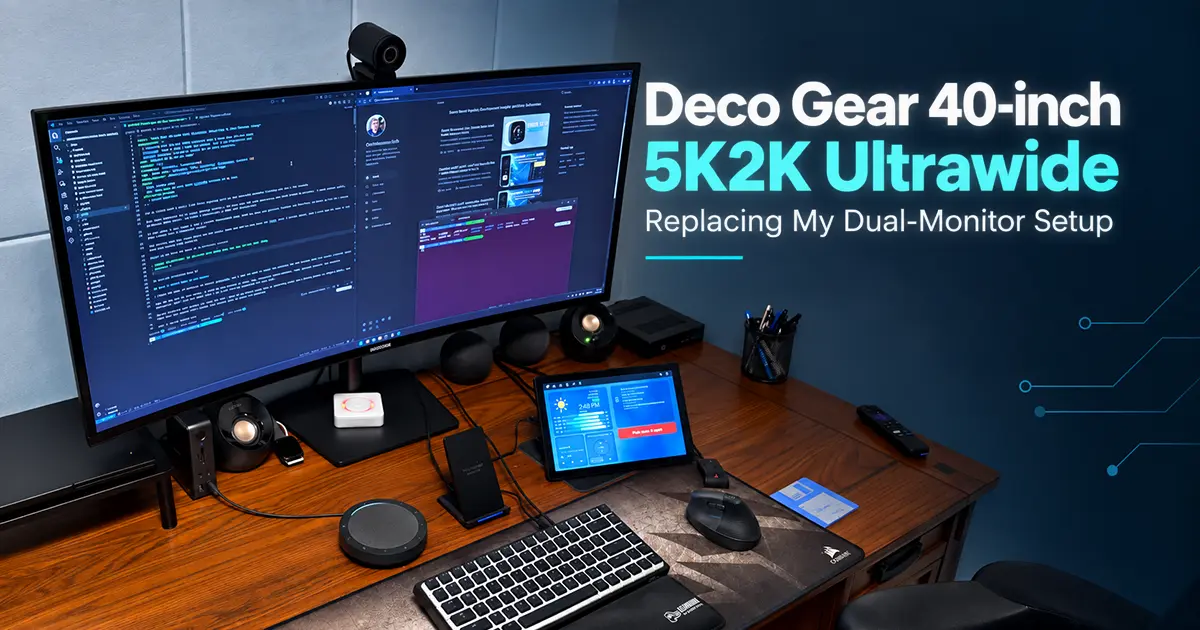
I replaced two 26-inch 1080p monitors with a Deco Gear 40-inch 5K2K ultrawide. Here is why I made the switch, how I use FancyZones and virtual desktops, and what changed in my daily workflow.
For a little over a year, I had been fighting with my two monitors randomly blinking out for a few seconds.
Both were connected to my Anker docking station, and they were the only devices on the dock giving me problems. I tried better cables, different HDMI cables, and even a combination of HDMI and DisplayPort.
At one point, I was ready to buy a Lenovo Thunderbolt dock. Both my work and personal laptops are ThinkPads, so going all-in on a Lenovo dock seemed like a reasonable answer.
The problem was that those docks are not cheap, some had fewer ports than the Anker dock I already owned, and I still did not know if the dock was actually the problem.
Maybe it was time to look at the monitors instead.
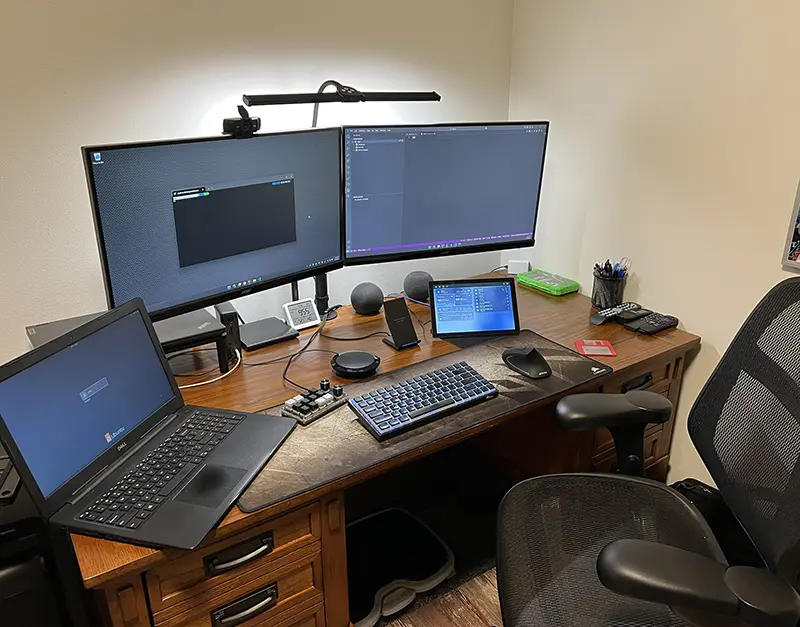 My previous dual-monitor desk setup
ChrisHansenTech is a participant in the Amazon Services LLC Associates Program, an affiliate advertising program designed to provide a means for sites to earn advertising fees by advertising and linking to Amazon.com. As an Amazon Associate I earn from qualifying purchases.
What I wanted from a new monitor
I liked the idea of moving to a curved ultrawide, but I did not want to trade two monitors for one display with less useful vertical space.
Most of my work is not gaming. I spend my day looking at code, SQL, technical specifications, logs, browser windows, and analysis documents. When I am not doing that, I am often writing something for this site.
Gaming features were pretty far down the list. Most of my gaming these days is something retro like Police Quest or King’s Quest, and that does not happen often enough for refresh rate to drive the purchase.
What I really wanted was:
- More vertical resolution than 1080p.
- Enough horizontal space to keep multiple useful windows visible.
- USB-C connectivity for my laptops.
- A USB hub for the devices I share between computers.
- Enough power delivery to handle my personal ThinkPad.
- A price that did not make me regret searching for monitors in the first place.
The first monitor that caught my attention was the Samsung ViewFinity S8 S85TH 40-inch 5K2K. The built-in Thunderbolt 5 dock was appealing because it could have replaced a lot of the hardware already sitting on my desk.
It was also more than I wanted to spend.
That led me to other 40-inch 5K2K displays, where I found the Deco Gear 40-inch curved 5K2K monitor for about half the price of the Samsung I had been looking at.
It did not have a complete dock with Ethernet and every port I could want, but it had a four-port USB hub with two USB 3 ports and two USB 2 ports.
That was enough for the devices I actually wanted to move with the monitor.
I could keep the Anker dock for Ethernet and the extra point-of-sale hardware I use for work, while the monitor handled the display and the USB devices that need to follow whichever laptop I am using.
That seemed like a much better fit than replacing a perfectly useful dock just because my displays occasionally decided to blink.
So I ordered the Deco Gear.
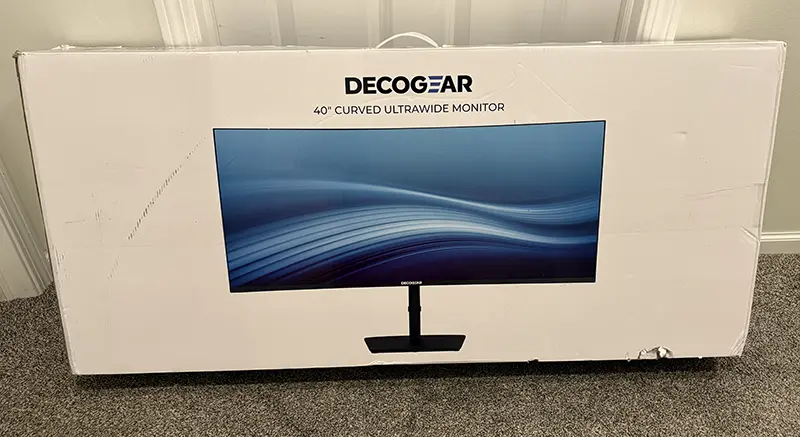 Deco Gear 40” Arrived
My smart home immediately betrayed me
A few days later, the monitor arrived.
I had a very solid plan. I was going to get the giant box into the house, set everything up, and maybe my wife would not really notice that I had replaced two monitors with one enormous curved one.
Then the Amazon driver rang the doorbell.
My smart home did exactly what I designed it to do and sent notifications.
A few seconds later I got a text:
“WTF what is that!? It looks like a new computer screen!”
So much for that plan.
After taking down the two old 1080p monitors and their stand, I cleaned up the desk and put the new display in place.
The first power-on was bright. Very bright.
I enabled HDR on the monitor and then adjusted the HDR settings in Windows until the display looked comfortable. For SDR applications, setting the brightness level to around 10 percent gave me something much closer to the setup I was used to.
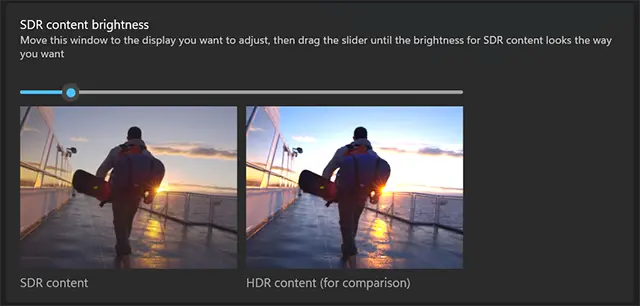 Windows 11 HDR Brightness Settings
The other thing I noticed almost immediately was how much larger my desk felt.
Two separate monitors, their bezels, and the old stand took up more visual and physical space than I realized. With one display, the desk suddenly looked much cleaner.
I also pushed the monitor farther back on the desk. Between the higher resolution and Windows scaling, I did not need to lean toward the screen nearly as much.
That was not something I was shopping for, but I will take it.
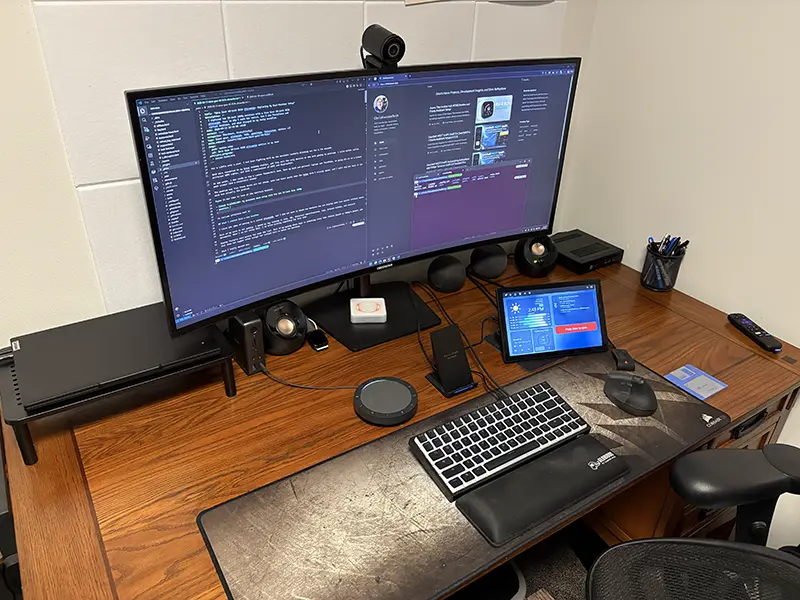 Desk Setup New Monitor
The monitor became the shared USB hub
I regularly switch my desk between two laptops:
- ThinkPad P16v Gen1 for work.
- ThinkPad T14s Gen6 for personal use.
There are a few devices I want available on both systems, so I moved those to the monitor’s USB hub.
My EMEET SmartCam 800 4K webcam went there first.
I also moved my Royal Kludge RK84 keyboard back to USB.
I had been using Bluetooth because it made switching between the two laptops easy, but there was one small annoyance. The keyboard would sometimes go to sleep, especially while I was helping another developer and not typing for a while. I would press a key, wait for it to wake up, and then continue.
That delay is tiny, but it gets old quickly when it happens all day.
USB solves it.
The RK84 also has its own two-port USB 2.0 hub, so I plugged my USB fingerprint reader into the keyboard. That keeps one more cable off the monitor itself.
I did that partly because the monitor’s USB 2.0 ports are on the side. They are convenient for something temporary, but I do not really want a cable hanging out of the side of the display permanently. If I end up using those ports more often, I will probably add short right-angle USB extensions to clean that up.
The result is that I can move the monitor, webcam, keyboard, and fingerprint reader between computers by moving one cable.
The 90-watt power delivery from the monitor also powers my T14s, so my personal setup is especially clean.
I kept the Anker USB-C dock for my work laptop. It still handles Ethernet and the extra point-of-sale devices I connect while working, including things like scanners and printers.
That ended up being a better setup than trying to make one dock do absolutely everything.
One ultrawide is not just two monitors without a bezel
The biggest adjustment was not the hardware. It was deciding how I wanted to organize windows.
With two monitors, the layout was simple. Whatever I was actively working on went on one screen. Google Chat, Gmail, Calendar, documentation, logs, or whatever else I needed went on the other.
The downside was that my main work was almost always off to one side.
I was either looking left or looking right instead of straight ahead.
With the ultrawide, I wanted the thing I was concentrating on directly in front of me.
That is where PowerToys FancyZones and Windows virtual desktops started becoming useful again.
FancyZones puts the important work in the center
Windows 11 already has Snap Layouts, but FancyZones gives me much more control over exactly where windows go.
For a general work layout, I like the idea of keeping the main application in a large center zone and using the sides for supporting information.
flowchart LR
    A["Reference<br/>20%"]
    B["Main Work<br/>60%"]
    C["Notes / Tools<br/>20%"]

    A --- B --- C
The percentages are not sacred. The important part is that the center is intentionally larger.
If I am working on a technical specification, I might have the specification or code in the center, requirements on the left, and another reference on the right.
flowchart LR
    A["SRD / Requirements"]
    B["Specification"]
    C["Code / Reference"]

    A --- B --- C
That has turned out to be better than putting the same information on separate monitors.
Everything I am comparing is directly next to everything else. There is no bezel in the middle, and I do not have to keep turning my head between displays.
FancyZones also works well for blogging
The same idea works when I am researching and writing for ChrisHansenTech.
My posts normally start in Obsidian. I do most of the drafting there, then move the article into VS Code when I am ready to finish the Jekyll/Chirpy front matter, images, links, and other site-specific work.
For the drafting stage, a layout like this works well:
flowchart LR
    A["Research / ChatGPT<br/>~45%"]
    B["Obsidian<br/>~55%"]

    A --- B
I originally assumed Obsidian should get most of the display.
That turned out to be a waste.
I keep my Obsidian editor around 75 characters wide because that is easier for me to read and write in. Maximizing it on a 40-inch ultrawide is almost comical. The document sits in the middle surrounded by acres of empty space.
Giving the browser or research window more room is more useful.
When the post moves into VS Code, I can switch to another layout:
flowchart LR
    A["VS Code<br/>~65%"]
    B["Browser Preview<br/>~35%"]

    A --- B
That gives VS Code enough room for the file tree, editor, terminal, or split editors while still keeping the rendered site next to it.
I use the keyboard instead of dragging windows around
One FancyZones setting made a big difference for me.
In the FancyZones settings, I enabled:
Override Windows Snap hotkeys (Win + arrow) to move between zones
That changes the normal Windows snapping behavior so I can move the active window through my FancyZones layout without touching the mouse.
The shortcuts I use most are:
Win + Left: Move the active window to the zone on the left.Win + Right: Move the active window to the zone on the right.Win + PgUp: Cycle through windows stacked in the current zone.Win + PgDn: Cycle the other direction through windows in the current zone.
That last pair is especially useful.
If I have several reference applications stacked in one side zone, it acts like a small Alt + Tab just for that part of the screen.
FancyZones also supports assigning numbers to layouts. Those layouts can be switched with:
Win + Ctrl + Alt + [number]
That gives me room to have separate layouts for coding, specification work, blogging, and meetings without opening the FancyZones editor every time.
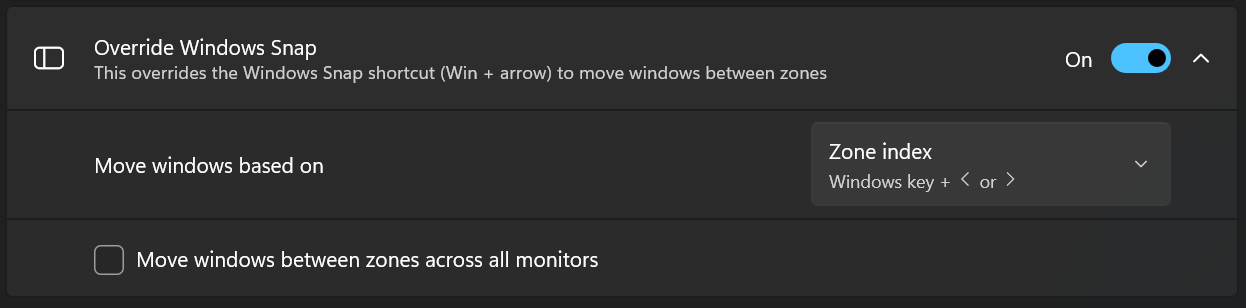 PowerToys FancyZones override Windows Snap hotkey
Virtual desktops hide what I do not need
FancyZones handles how applications are arranged within a workspace.
Virtual desktops solve a different problem: what I want visible at all.
I used virtual desktops quite a bit years ago when I only had one monitor. With the ultrawide, I am finding them useful again.
For work, I think about the desktops something like this:
flowchart LR
    A["Desktop 1<br/>Code + Reference"]
    B["Desktop 2<br/>POS / Testing"]
    C["Desktop 3<br/>Communication"]

    A --> B --> C
Desktop 1 contains development work.
That might include Delphi, VS Code, specifications, documentation, browser research, or SQL tools.
Desktop 2 contains the POS environment.
I can make a code change, switch desktops, test it, and then switch back to development.
Desktop 3 is communication.
That is where Google Chat, Gmail, Calendar, and the other things that want my attention can live.
The Windows shortcuts I use are:
Win + Ctrl + Left: Move to the virtual desktop on the left.Win + Ctrl + Right: Move to the virtual desktop on the right.Win + Ctrl + D: Create a new virtual desktop.Win + Ctrl + F4: Close the current virtual desktop.Win + Tab: Open Task View and see all virtual desktops.
Once Win + Ctrl + Left and Win + Ctrl + Right get back into muscle memory,
moving between environments is fast.
Fewer distractions in my peripheral vision
This may end up being one of the biggest productivity improvements from the whole change.
With two monitors, it is very easy to leave chat, email, or something else open on the second display.
That sounds useful until a message pops up while I am trying to work through something complicated. Something is moving in my peripheral vision asking for attention.
The same thing happens during meetings. I can be in a Google Meet while some unrelated work is still sitting right next to the meeting window.
Virtual desktops let me make that stuff disappear.
When I am developing, I see development.
When I am testing, I see the POS environment.
When I am in a meeting, I see the meeting and communication tools.
There is a small adjustment period because I have to rebuild the keyboard shortcut muscle memory, but the idea is simple:
FancyZones gives me more useful information next to what I am actively working on.
Virtual desktops let me hide everything that has nothing to do with what I am actively working on.
That combination has been much better than simply treating the 40-inch display like two monitors with the bezel removed.
A few unexpected benefits
There were a few things I did not expect when I moved to the ultrawide.
The first showed up almost immediately in meetings.
Two different people asked if I had changed microphones.
I had not. I was still using the same Jabra Speak2 55 Speakerphone.
My best guess is that moving the monitor farther away and removing some of the flat surfaces around the speaker changed the acoustics around my desk enough to make me sound different.
I did not buy a monitor to improve my microphone, but I will take that too.
The second surprise was how useful the full width can be when I actually want one application to take over the display.
Most of this post is about using FancyZones and virtual desktops so one ultrawide can replace the way I used two separate monitors. But there are some applications where I do not want to divide the screen at all.
Photoshop is one of them. With the application full screen, I can keep a large canvas visible while still leaving room for panels like Layers, Properties, and History. I do not have to choose between seeing the image at a useful size and keeping the editing tools I need on screen.
DaVinci Resolve may benefit even more. I had not opened it since getting the monitor, and the difference compared with editing on a 1080p display was immediate. The timeline is much easier to see, there is more room for tracks and controls, and the preview stays large enough to be useful without crowding out the rest of the interface.
Those applications changed how I think about maximizing windows on an ultrawide. For normal development and writing, maximizing an application often wastes space, so FancyZones makes more sense. For dense creative applications like Photoshop and DaVinci Resolve, the entire 5K2K desktop can become one large workspace.
A log file in VS Code is another good example. Some logs have very long lines, and the 5K2K display lets me see much more of the line without constantly scrolling horizontally.
It has also helped when I am assisting other developers.
As a tech lead, I spend a fair amount of time looking at someone else’s shared screen while we troubleshoot something. On the ultrawide, I can make that shared screen much larger without giving up the clarity I need to read small text.
There is less squinting, less asking someone to zoom in, and less asking them to slow down while moving around the screen.
It is a little like having a full 1080p monitor living inside the Google Meet screen share.
A few gotchas I ran into
The change has gone well, but there are a few things I would keep in mind if you are considering the same kind of setup.
HDR needed adjustment
The out-of-the-box brightness was too much for me.
Turning on HDR was only the first step. I still had to adjust the Windows HDR settings, especially the brightness of SDR content, before the display felt comfortable for normal desktop use.
My setting ended up around 10 percent for SDR brightness, but that is very much a personal preference.
Windows scaling matters
5K2K sounds like an invitation to make everything tiny.
It does not have to be.
Windows scaling lets me keep text at a comfortable size while still benefiting from the extra workspace and sharper display.
The useful part is not seeing microscopic text. It is fitting more useful information on the screen at a size I can actually read.
An ultrawide still needs window management
A bigger monitor does not automatically create a better workflow.
If I maximize every application, I waste a huge amount of space. If I randomly drag windows around, I end up recreating the clutter I had before.
FancyZones is what makes the extra width useful for me.
Port placement can matter
The side USB ports are convenient, but I would not want permanent cables hanging out of them.
That is a small detail, but it is exactly the kind of thing you notice after a monitor has been on your desk for a week instead of five minutes.
I still kept the dock
The monitor did not replace my Anker dock.
That was intentional.
For my personal laptop, the monitor handles almost everything I need through one connection. For work, the dock still handles Ethernet and the extra hardware I use for POS development and testing.
I ended up with a cleaner setup without forcing one device to solve every problem.
Was it worth replacing two monitors?
For me, yes.
I started this whole process because my old monitors kept blinking out through the docking station. I expected the new monitor to solve an annoying hardware problem and give me more resolution.
The bigger change was how I use the desk.
My main work is now directly in front of me instead of living on the left or right monitor. FancyZones lets me keep related information next to that work. Virtual desktops let me hide the things that do not belong in the current context.
The built-in USB hub also made switching between my work and personal ThinkPads simpler, while keeping the Anker dock around for the work-specific devices that still need it.
And, somehow, people think my microphone sounds better.
I am still refining the layouts and rebuilding some old virtual-desktop habits, but I do not miss the bezel between the two 1080p monitors.
The Deco Gear did not just replace two screens with one bigger screen.
It changed how I organize the work that goes on them.
Resources
Hardware
- Deco Gear 40-inch curved 5K2K monitor
- Anker USB-C docking station
- Lenovo ThinkPad P16v Gen1
- Lenovo ThinkPad T14s Gen6
- EMEET SmartCam 800 4K webcam
- Royal Kludge RK84 keyboard
- Jabra Speak2 55 Speakerphone
- USB Fingerprint Reader
Software
Want to share your thoughts or ask a question?
This blog runs on coffee, YAML, and the occasional dad joke.
If you’ve found a post helpful, you can
support my work or
☕ buy me a coffee.
Curious about the gear I use? Check out my smart home and homelab setup.