Doorbell MQTT UniFi: Automating Animations and Visitor Tones on UniFi G4 Doorbell Pro
Doorbell MQTT UniFi is a lightweight C-based service that integrates the UniFi G4 Doorbell Pro with Home Assistant via MQTT. Automate custom animations and sounds locally using profile-based control, asset downloads, and Docker deployment.
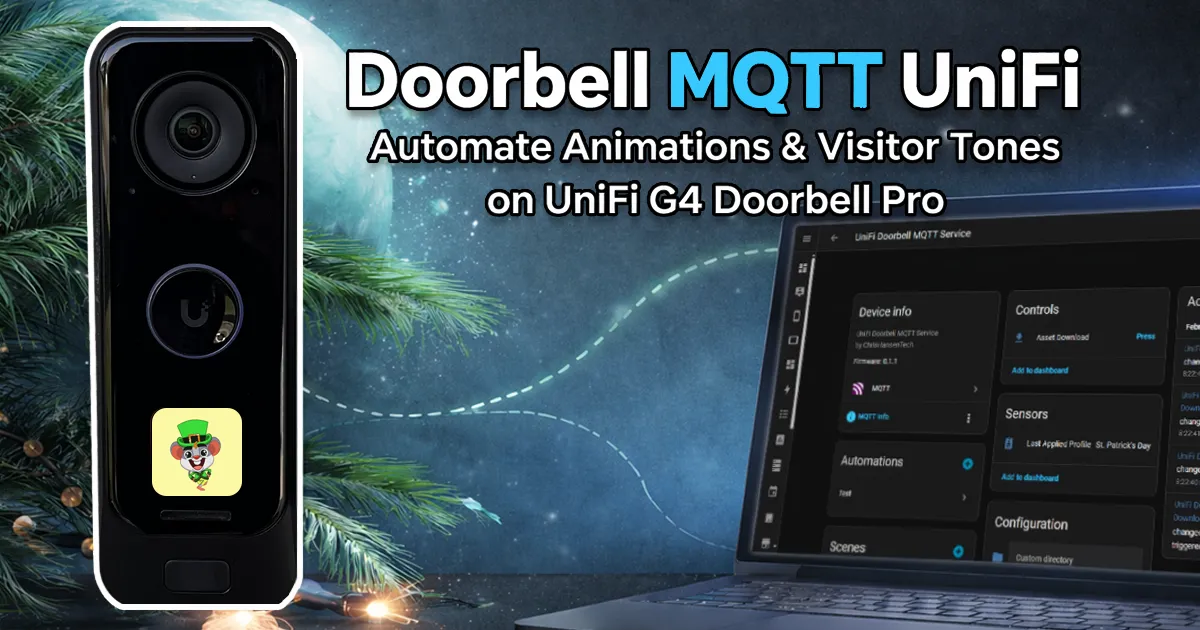
Update: A full setup guide for doorbell-mqtt-unifi is now available, including the improvements introduced in v0.2.0.
For the past couple of years I’ve been customizing our UniFi G4 Doorbell Pro with different animations and sounds for holidays. My girls absolutely love this feature.
Santa in December. Shamrocks in March. Easter bunny in April.
The problem?
I would manually upload animations in the UniFi Protect app, tell myself I’d switch it back later… and then it would still be Easter in July.
After doing that enough times, I decided to fix it properly.
Doorbell MQTT UniFi was born.
What It Does
Doorbell MQTT UniFi is a lightweight C-based service that bridges the UniFi G4 Doorbell Pro with MQTT and Home Assistant.
It gives you:
- Local-only control of animations and sounds
- Profile-based themes (Christmas, birthdays, whatever you want)
- Automatic Home Assistant MQTT discovery
- Asset download from the doorbell
- Clean Docker deployment
No cloud dependency. No cron hacks. No manually changing UniFi Protect every season.
GitHub: https://github.com/ChrisHansenTech/doorbell-mqtt-unifi
Why I Built It
Originally, I just wanted something I could automate with MQTT.
My first idea was simple:
- Create a small service
- Expose a topic like
doorbell/apply_profile - Send commands from Home Assistant
- Done
But once I got that working, it felt unfinished.
If I was going to do this right, it needed:
- Proper MQTT discovery
- Clean status reporting
- Error sensors
- Download support
- Preset management
- Structured configuration
- Real logging
- Graceful shutdown
- Unit tests
It turned into a full integration.
And honestly, that’s the difference between a hack and something I’m willing to publish.
Key Features
- Home Assistant MQTT Discovery (entities auto-create)
- Preset profile selection via dropdown
- Custom profile directory input for applying profiles not defined as presets
- Asset download from the doorbell into reusable profile directories
- Structured status and error sensors (with attributes)
- SSH/SCP-based upload using the UniFi recovery code
- Fully containerized with Docker-friendly logging and env overrides
Profiles are self-contained directories:
1
2
3
4
/profiles/christmas/
  ├── profile.json
  ├── christmas.png
  └── christmas.ogg
Animations must be sprite sheet PNG files with 240x240 frames and the
correct frame count defined in profile.json.
Home Assistant Entities and Automation
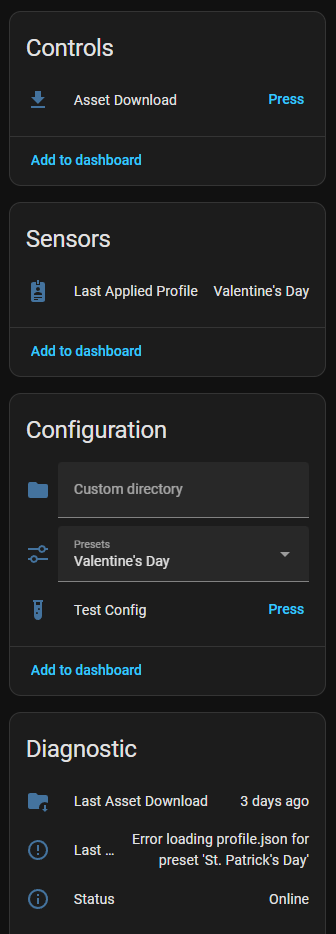 Home Assistant Doorbell MQTT Unifi Entities
Here’s a simple automation that switches themes automatically.
Apply Christmas on December 1st:
1
2
3
4
5
6
7
8
9
10
11
12
13
14
alias: Doorbell - Christmas Theme
trigger:
  - platform: time
    at: "00:05:00"
condition:
  - condition: template
    value_template: "{{ now().month == 12 and now().day == 1 }}"
action:
  - service: select.select_option
    target:
      entity_id: select.unifi_doorbell_mqtt_service_presets
    data:
      option: "Christmas"
mode: single
Now the bunny won’t survive into summer.
Asset Download
One feature I’m especially happy with is Asset Download. Instead of manually building PNG sprite sheets and properly encoding WAV or OGG sound files, you let UniFi Protect handle the conversion for you.
You can:
- Upload images (JPEG, GIF, PNG) and sounds (MP3) in UniFi Protect
(Web console or mobile app) - Apply it
- Press “Download” in Home Assistant
- Get a fully structured profile directory
The service pulls the firmware-converted PNG sprite sheet and OGG sound and saves a versioned directory under:
/profiles/downloads/YYYYMMDD_HHMMSS
It also includes the original .conf files for reference.
It turns Protect-managed customization into versioned, reusable infrastructure.
Tips Before You Start
Enable SSH on the Doorbell
SSH must be enabled on the doorbell.
The easiest way to do this is through the Home Assistant UniFi Protect integration using the SSH Enabled configuration entity. This entity is disabled by default.
After enabling SSH, copy the doorbell’s recovery code from the device settings in UniFi Protect.
For a deeper walkthrough, see my Using SCP and SSH to Update UniFi Doorbell G4 Animations and Tones post.
Docker Networking
If running in Docker:
localhostmeans the container- Set
MQTT_HOSTandSSH_HOSTto LAN IPs
Video Demo
Resources in This Post
ChrisHansenTech is a participant in the Amazon Services LLC Associates Program, an affiliate advertising program designed to provide a means for sites to earn advertising fees by advertising and linking to Amazon.com. As an Amazon Associate I earn from qualifying purchases.
Hardware
Architecture Deep Dive Coming
This post is the release announcement.
In the next post, I’ll break down:
- MQTT topic structure
- State restoration logic
- Error handling design
- Why I chose C instead of Python
- SCP upload flow
- Download parsing
- How the service restores state after restarts
Final Thoughts
This started because I forgot to change an Easter bunny.
It turned into a four-month project with CI/CD, GitHub releases, Docker publishing, unit tests, structured docs, and real-world validation in my own homelab.
This project builds on everything I’ve learned digging into the G4 Doorbell over the past year.
It’s open source under MIT.
If you’re running a UniFi G4 Doorbell Pro and Home Assistant and you want proper local control, this is for you.
GitHub: https://github.com/ChrisHansenTech/doorbell-mqtt-unifi
Related UniFi G4 Doorbell Posts
If you want to go deeper into how the animation system works under the hood, or see the broader UniFi G4 Doorbell Pro series, start here:
Want to share your thoughts or ask a question?
This blog runs on coffee, YAML, and the occasional dad joke.
If you’ve found a post helpful, you can
support my work or
☕ buy me a coffee.
Curious about the gear I use? Check out my smart home and homelab setup.